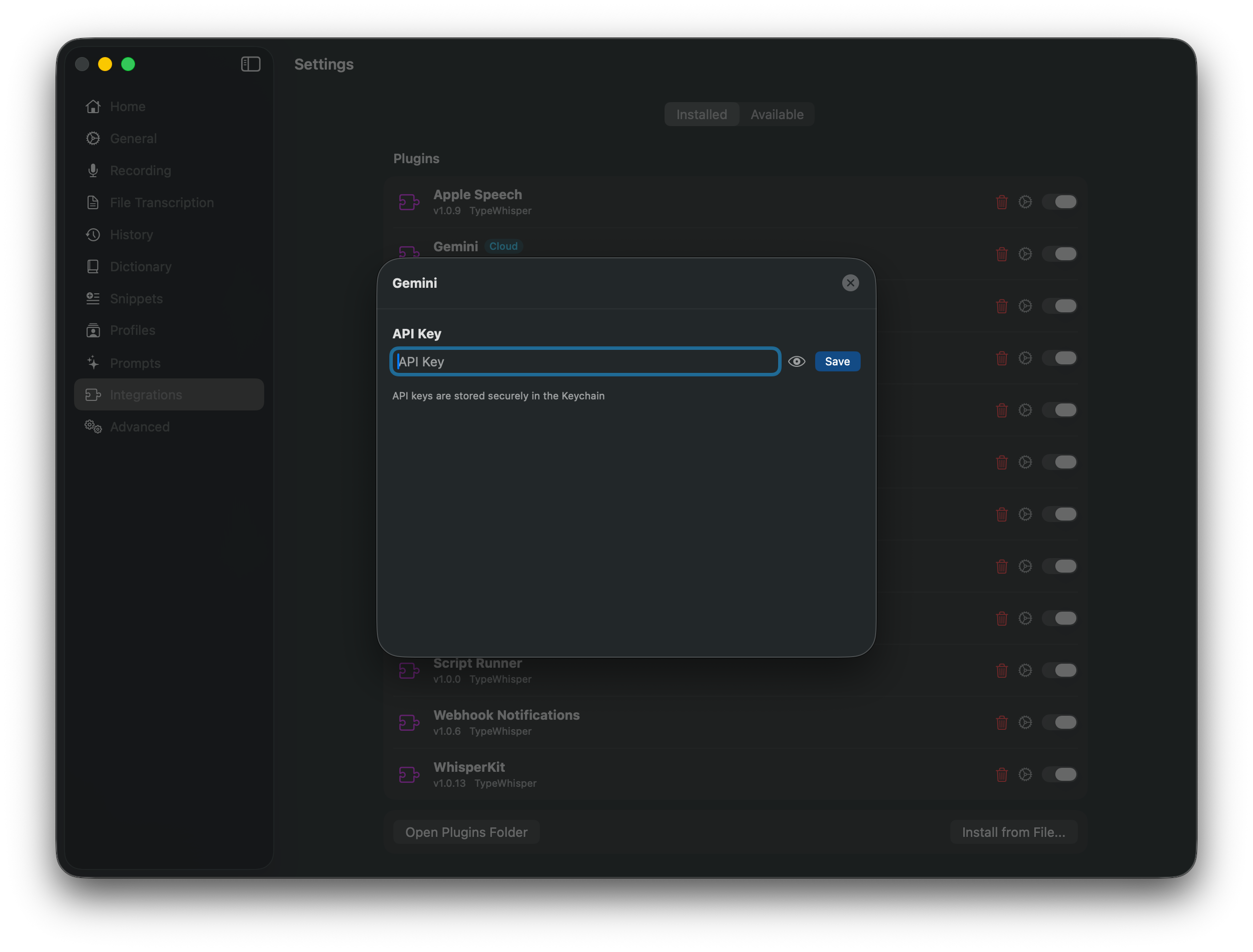
Refreshable transcription and language-model catalogs
Live preview with supported transcription models
Settings in this edition
Store and validate the API key in macOS Keychain
Refresh models and select the transcription model in provider or workflow settings
Choose Smart for cleaned dictation or Verbatim for literal output
Setup
Open Settings > Integrations and enable Gemini.
Save your Google AI Studio API key and refresh the model catalog.
Select Gemini as the transcription provider and choose an available transcription model.
Choose Smart for cleaned dictation or Verbatim for a more literal result. Live previews require a model with live support.
For text processing, select Gemini separately as the workflow’s LLM provider and choose a Gemini or Gemma text model.
Models and privacy
Transcription and language models are filtered separately. Available models depend on Google’s catalog and your API access. The transcription provider does not support translation requests; translation can run as a separate text workflow.
Audio and text are sent to Google for the capability you select. Billing and usage limits depend on your Google account.