

System-Wide Dictation
Use a global hotkey to start and stop recording from any app. Choose between push-to-talk (hold to record), toggle mode (press to start/stop), or modifier-key hotkeys. Transcribed text is automatically pasted into the active text field.
Streaming Preview
WhisperKit and Apple SpeechAnalyzer provide live partial results while you speak. With Parakeet and engines without native streaming, the overlay falls back to showing available text and current progress as soon as results arrive.
AI Workflows
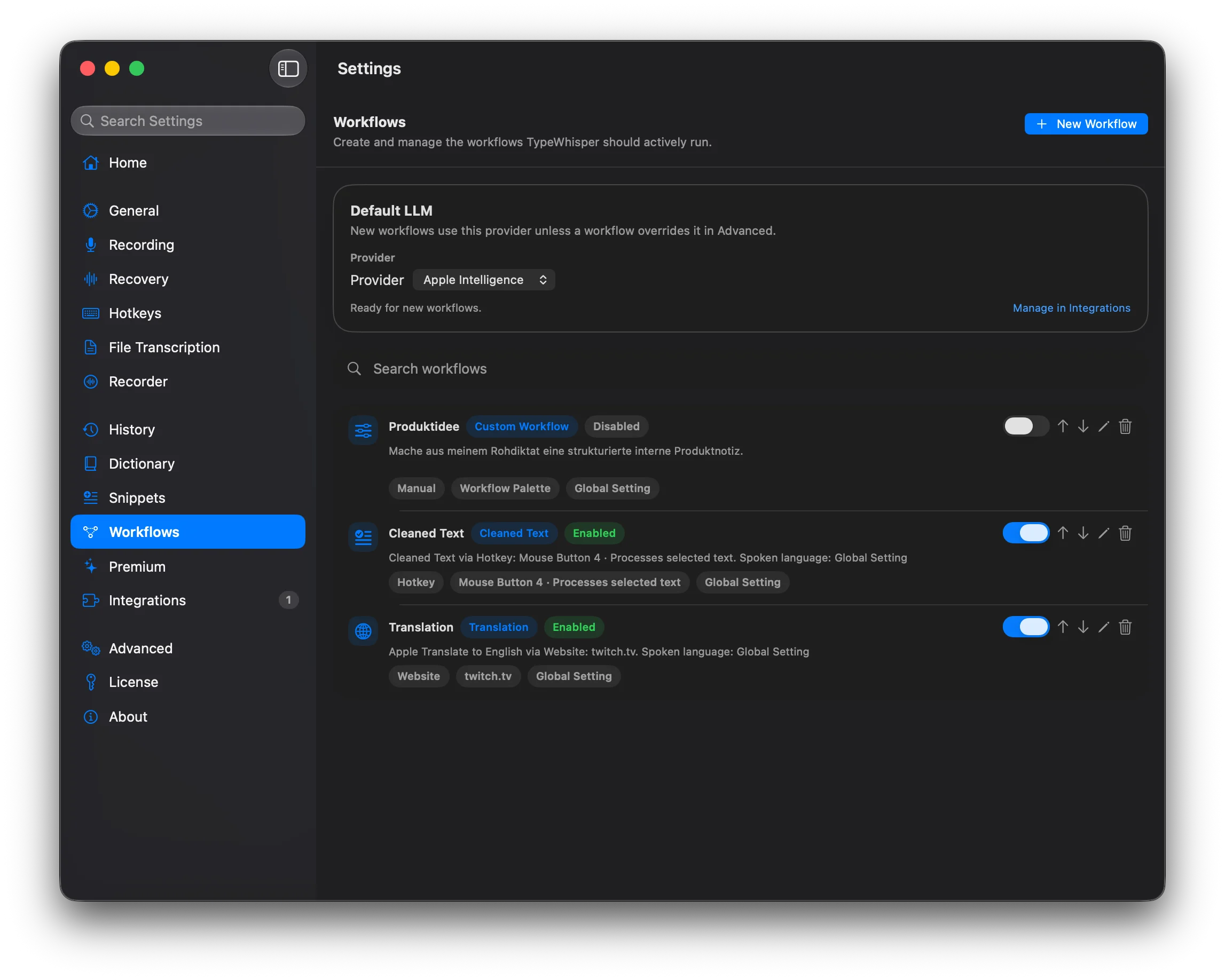
Process transcribed text through workflows before it gets pasted. TypeWhisper includes templates for translation, formatting, summarization, and app-specific cleanup.
Connect Apple Intelligence (on-device), Groq, OpenAI, Gemini, or another LLM integration, then arrange providers and optional models in one global fallback list. Workflows inherit that order by default; selecting an explicit workflow provider keeps that workflow on one strict provider call.
Learn how workflows work, how prompt instructions are applied, and what to check if nothing changes.
Dictionary
Teach TypeWhisper domain-specific vocabulary. Add custom terms, define corrections for commonly misrecognized words, and turn on Premium > Learn from Corrections to build your personal dictionary over time. Import community term packs and use licensed industry packs for fields such as real estate, architecture, and legal drafting.
The dictionary has two parts: custom terms can be passed into transcription when the engine supports them, and dictionary corrections are applied automatically after transcription. You do not need to manually force the dictionary to run.
With Parakeet, custom terms can stay fully local. Enable vocabulary boosting and Parakeet will use those terms on-device during transcription, while post-transcription corrections still run automatically.
Vocabulary Boosting
Boosting controls how closely Parakeet's initial result must resemble a Dictionary Term before local vocabulary rescoring may use it. Lower thresholds are more aggressive and may catch wider variations; higher thresholds are more cautious and reduce false matches.
AutoRecommended starting point. Parakeet chooses a threshold automatically based on the number of active terms.
Strong (0.50)The most aggressive preset. Use it when a distinctive name is still missed often. It increases recall, but can produce more false matches.
Balanced (0.65)A more cautious middle setting. Try it if Strong replaces similar ordinary words.
Precise (0.80)Requires a close match. Use it when the term resembles an ordinary word and avoiding false matches matters more than catching every variation.
Advanced (0.40–0.95)Sets the threshold manually. Lower values are more aggressive; higher values are more cautious. Adjust it in small steps and repeat the same test sentence.
Example: For a name such as Kazumi, start with Auto. If Parakeet still misses it, try Strong. If Strong starts inserting Kazumi for similar ordinary words, move to Balanced or Precise.
These thresholds affect Parakeet only and require Enable Vocabulary Boosting in the Parakeet integration. Other engines may use Terms as hints but ignore the thresholds. Boosting does not train the base model and is separate from Dictionary Corrections, which still run after transcription.
Learn from Corrections
Learn from Corrections runs after TypeWhisper inserts dictated text into the target app; there is no separate per-workflow switch. TypeWhisper briefly watches the inserted text through macOS Accessibility. If you manually correct exactly one word and the diff is high-confidence, it saves a Dictionary Correction. Sentence rewrites, deletions, and ambiguous edits are skipped on purpose so TypeWhisper does not learn bad replacements.
When a correction is learned, TypeWhisper shows feedback such as Saved to Dictionary: “wrong” -> “right” with an Undo action. Learned entries can be reviewed in Dictionary > Auto-learned / Corrections. If no feedback appears, either nothing safe was learned or the target app did not expose the edited text reliably enough.
How to test it
Turn on Learn from Corrections under Settings > Premium, dictate a short sentence into a normal text field, manually fix one misrecognized word, then press Return or Tab, send the message, or leave the field. Look for the learned-correction feedback and the Auto-learned dictionary entry.

Snippets
Define trigger phrases that expand into longer text blocks. Snippets support dynamic placeholders like {{DATE}}, {{TIME}}, and {{CLIPBOARD}} for automatic date, time, and clipboard insertion.

File Transcription
Drag and drop audio or video files to transcribe them in batch. Supports all common formats (MP3, WAV, M4A, MP4, MOV, and more). Export results as SRT or WebVTT subtitles with accurate timestamps.

Recorder
The Recorder records the microphone, system audio, or both, for example during a meeting, and saves the recording with its transcript next to it. Start it on the Recorder page in Settings, from the menu bar, through calendar automation, or with the local API.
Whisper Mode
Boost microphone gain for quiet speech or noisy environments. Turn on Whisper Mode (AGC) for all dictations under Settings > Advanced, or set it for a single workflow.
Translation
Apple Translate provides on-device translation between many language pairs. In Workflows, the Translation template can use Apple Translate on macOS 15+ or LLM Prompt mode for provider-based translation. WhisperKit can also translate speech from any supported language to English.
Transcription History
All transcriptions are saved locally with their time, the app they were dictated into, and the engine and model used. Edit an entry in place and switch between Final, Original, and Changes to see what was corrected.
History opens in its own window. The sidebar holds Inbox, All History, With Audio, and Failed, and groups entries by device. Search the text, filter by date or app, and sort the list. Select several entries to copy them, export them as Markdown, plain text, or JSON, mark them complete, or delete them. Open the window with Open History under Settings > History & Sync.

Home Dashboard
Home opens with your dashboard. Your Activity shows four numbers: words, average words per minute, apps used, and time saved. Recent Transcriptions lists your latest dictations. From there you reach the full statistics and the complete history.

Statistics
Statistics shows how you dictate over a week, a month, or all time. Eight numbers summarize the period: days active, current and longest streak, transcriptions, words, average words per minute, apps used, and time saved. Below them you find the activity per day, your top apps, the models used, and the usage by time of day.
TypeWhisper keeps these figures on your Mac as daily totals: counts, words, duration, apps, models, and hours. They contain no dictated text and stay complete when the history is shortened or switched off.

Plugins
Extend TypeWhisper with plugins under Settings > Discover plugins. The page lists the plugins you have not installed yet, with search, filters by function and by local or cloud processing, sorting by popularity or name, and a switch for community plugins. "Install" adds a plugin and opens its page. Every installed plugin has its own page in the Settings sidebar, with its settings, downloaded local models, and buttons to update, disable, or uninstall it. On the page of a transcription plugin, "Use as engine" selects it for dictation. The number next to Discover plugins counts the available updates, and "Update All and Restart" installs them together. Outside the Mac App Store edition, "Install Plugin" adds a plugin from a file.
See the Add-ons Marketplace for available plugins.
