

Prompts
Use prompts to rewrite transcribed text before it gets inserted. This page explains the basic workflow, custom prompts, and the most common failure modes.
What Prompts Do
A prompt in TypeWhisper runs after speech has already been transcribed. It takes that text, sends it through the configured prompt workflow, and then inserts the processed result.
Built-in prompts and custom prompts use the same mechanism. The difference is only the instruction and provider configuration behind them.
Important: prompts are not spoken commands
If you literally dictate the words of your prompt, TypeWhisper will transcribe those words. Select the prompt first, then dictate the content you want the prompt to transform.
Automatic cleanup after transcription
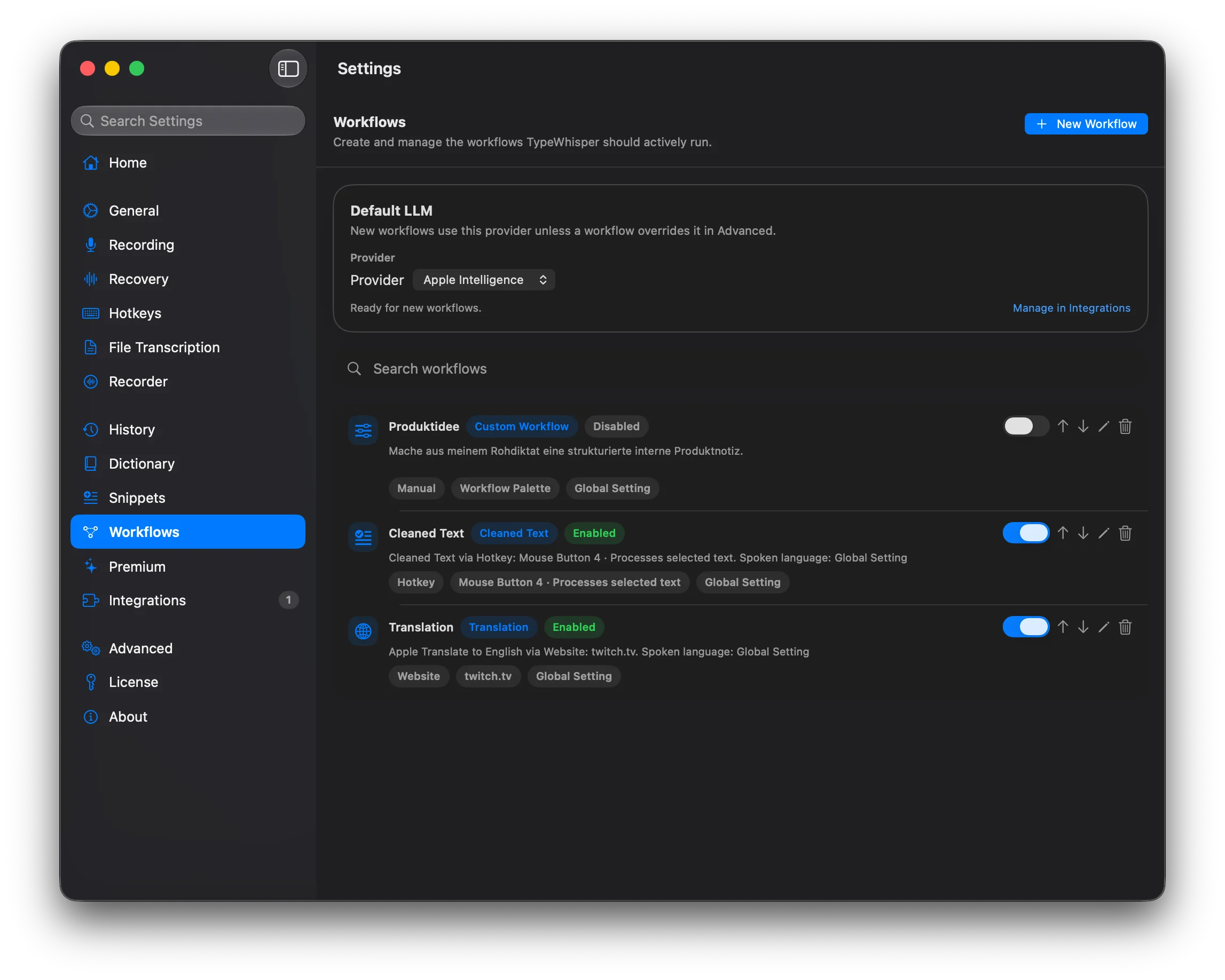
You can also use prompts as automatic post-processing for dictation. Assign a prompt like “Fix grammar, punctuation, and formatting while preserving meaning” to a workflow, and TypeWhisper will clean up each transcription in that context before inserting it. Set this up in Workflows.
Quick Start
- Open the Prompt Palette and pick a built-in prompt such as Format as List.
- Dictate the actual content you want to transform, not the prompt wording itself.
- TypeWhisper processes the transcription and inserts the rewritten result.
Dictated input
Tomorrow call Anna at 10, send revised pricing, and book a follow-up for Friday.
Result with “Format as List”
- Call Anna at 10 tomorrow - Send revised pricing - Book a follow-up for Friday
Creating a Custom Prompt
Keep your first custom prompt simple. The easiest way to verify the setup is to use a small rewrite instruction with a clear before-and-after result.
- • Make sure an LLM provider is available for that prompt if the prompt depends on cloud or local model processing.
- • Save the prompt and actively select it in the Prompt Palette, or assign it to a workflow if you want it to apply automatically.
- • Test it with short spoken input first so you can see whether the transformation happens at all.
- • If nothing changes, simplify the instruction before assuming the provider or workflow is broken.
- • Write the prompt as the instruction itself. You do not need placeholder syntax for the dictated text.
Starter prompt example
Turn the transcribed text into a short bullet list. Keep only the actionable points.FAQ
Why does TypeWhisper just type my prompt text?
Because prompts are configuration, not voice triggers. If you say the prompt out loud, TypeWhisper will transcribe exactly what you said. Pick the prompt first, then dictate the content you want transformed.
Why does my custom prompt seem to do nothing?
Usually one of three things is missing: the prompt is not currently selected, the workflow override is not active, or the required LLM provider is not configured for that prompt.
Do built-in prompts and custom prompts work differently?
No. Both are applied after transcription and before insertion. Built-in prompts simply ship preconfigured, while custom prompts depend on what instruction and provider you set.
When should I use a workflow prompt override?
Use a workflow override when one app, website, hotkey, or fallback path should always get a specific prompt automatically. That is useful for workflows like turning Mail dictation into polished emails or formatting meeting notes in a single tool.
Can prompts trigger actions or plugins instead of plain text output?
Yes. Advanced prompt workflows can send structured output into action plugins and add-ons. That is how workflows like Linear issue creation or Obsidian note capture are wired up.
Do I need placeholders in a custom prompt?
No. TypeWhisper passes the instruction and the transcribed text separately into the configured LLM workflow. In practice, write the transformation you want, such as "Rewrite this as a polite email" or "Turn this into bullet points."
Advanced Workflows
Workflows
Workflows let you bind prompt instructions and provider overrides to a specific app, website, hotkey, or fallback trigger.
Open Workflows docsAdd-ons and actions
If you want your prompt result to create issues, save notes, or trigger other automations, browse the add-ons documentation for action-based workflows.
Browse add-ons