
Workflows
Create website, app, hotkey, manual, and fallback workflows for dictation and direct text processing.
How Workflows Work
When you start dictating, TypeWhisper matches the current browser URL first, then the active app, against your enabled workflows. Matching workflows can override language, task, engine, translation mode, prompts, and related behavior automatically. Hotkey workflows can also process the current selection or clipboard directly without recording audio. The active workflow name is shown as a badge in the indicator together with why it matched.
Trigger Types
Website
Website workflows work across browsers. Use one or more domains; a workflow for github.com also matches subdomains like gist.github.com.
App
App workflows activate as soon as one of the selected apps is active. Use one or more apps for tools like Mail, Slack, Terminal, or browsers when a website condition is not needed.
Hotkey
Hotkey workflows run when you press their assigned shortcut. They can start dictation or process selected text and do not compete with automatic app or website matching.
Manual
Manual workflows are available from the Workflow Palette. They run only when you choose them directly.
Always fallback
An Always workflow becomes the global fallback. It only applies when no more specific workflow matches.
Priority
TypeWhisper resolves automatic workflow matches in this order:
- Website match
- App match
- Always fallback workflow
Manual and hotkey workflows are direct actions. They run from the Workflow Palette or their assigned shortcut instead of being selected by app or URL matching.
Creating a Workflow
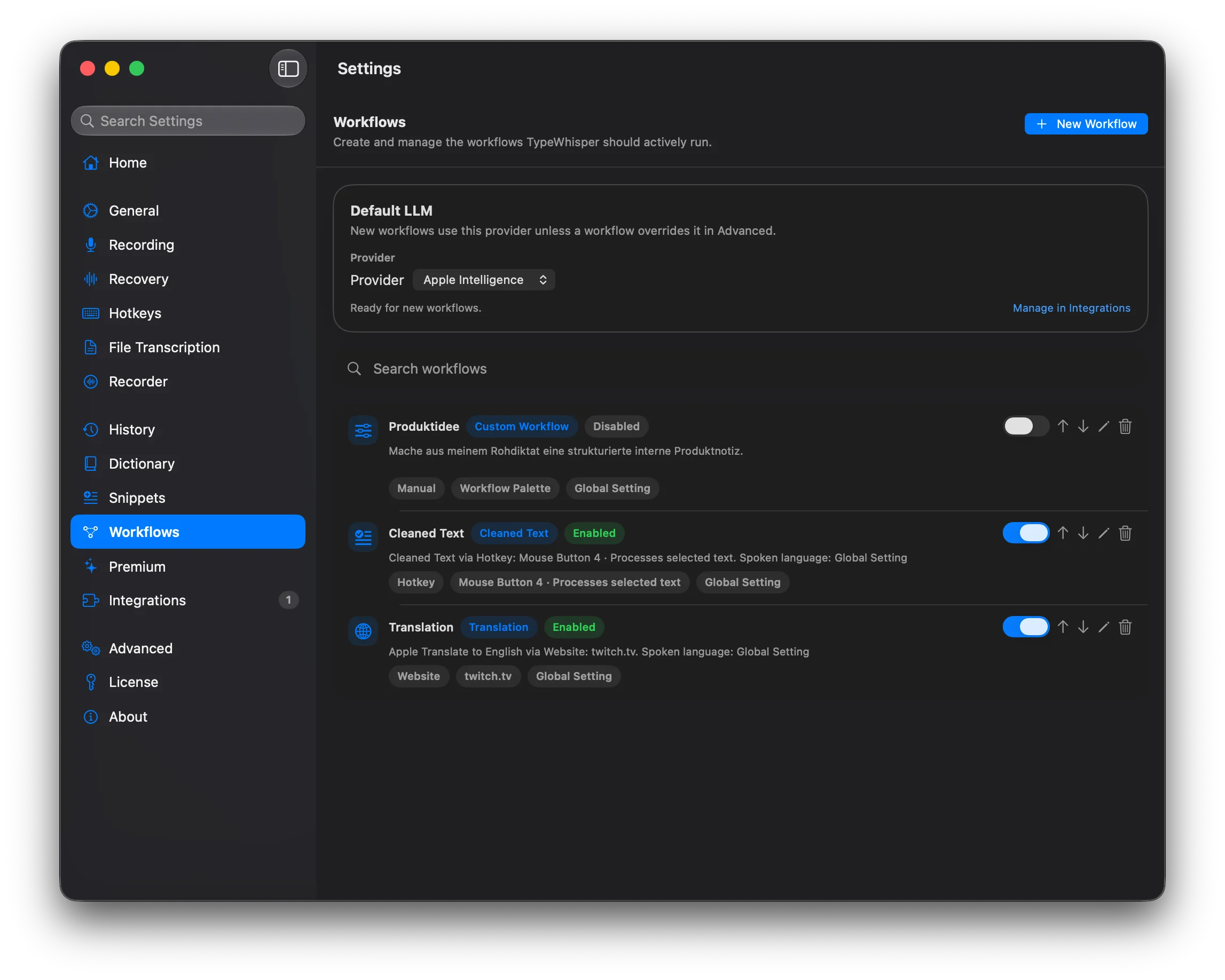
Go to Settings > Workflows and click "New Workflow". Pick a template, choose one trigger type, then configure the fields for that trigger and the behavior you want:
- • Apps - Limit the workflow to one or more selected apps
- • Websites - Match browser tabs by one or more domains or subdomain patterns
- • Language - Keep auto-detect, pin one language, or restrict recognition to likely languages
- • Task - Transcribe or Translate where the selected engine supports it
- • Translation mode - For Translation workflows, choose Apple Translate on-device on macOS 15+ or LLM Prompt mode.
- • Engine - WhisperKit, Parakeet TDT, Apple SpeechAnalyzer (macOS 26+), or any add-on engine
- • Prompt - Workflow-specific LLM prompt instructions for automatic post-processing
- • Prompt Provider - Inherit the ordered global LLM fallback list, or select one provider for a strict single-provider call
- • Hotkey - Assign one or more shortcuts to run this workflow on demand, either by starting dictation or by processing the current selection/clipboard directly
- • Auto-submit - Automatically send the inserted result in chat-style apps when appropriate
- • Priority - Break ties between workflows in the same automatic match tier
Hotkey Workflows
You can assign one or more shortcuts to a workflow and choose what those shortcuts do. Start Dictation uses the normal recording path with that workflow's settings. Process Selected Text skips recording, reads the current accessibility selection, falls back to Cmd+C and then the clipboard when needed, and inserts the processed result through the same path as the Workflow Palette.
Language and engine hotkeys
Create one Dictation Only workflow for each language and engine combination you want to trigger directly.
- Add a Dictation Only workflow for English, set Spoken Language to English, choose WhisperKit plus the model you want, and assign a Start Dictation hotkey.
- Add a second Dictation Only workflow for Norwegian, set Spoken Language to Norwegian, choose the local Whisper engine plus its model, and assign a different Start Dictation hotkey.
- Leave Transcription Engine on Use Global Engine when the workflow should follow your main Recording setting instead.
- Use Process Selected Text hotkeys for selection-based cleanup or prompts; they do not record audio and therefore do not need a transcription engine or model.
This keeps the global engine unchanged while each dictation hotkey can still force its own language, engine, and model.
Prompt Instructions
LLM Prompt workflows can attach prompt instructions to a specific context. Leave the provider on the global setting to inherit the ordered LLM fallback list, or select one provider when this workflow must make a strict single-provider call.
Use the Workflows guide for setup examples and common mistakes.
Global LLM fallback list
At the top of Settings > Workflows, add providers with an optional model and drag them into the order TypeWhisper should try. Inherited prompts and LLM workflows move to the next entry when a provider is unavailable, cannot restore, is rate-limited, hits a network or API error, or returns no text.
A workflow with an explicitly selected provider does not use the list. It makes one strict call to that provider. If every inherited fallback fails, TypeWhisper shows a combined error and does not insert replacement text.
This list is separate from the Always workflow trigger: Always chooses which workflow runs when no more specific workflow matches, while the LLM fallback list chooses the provider attempt order inside inherited prompt processing.
Multiple Engines
Dictation Only workflows can override the transcription engine and model used for that hotkey. TypeWhisper can keep multiple engines loaded in memory during a session for instant switching. Set Auto-unload model to Never if you want previously loaded local models restored at launch; any active auto-unload policy keeps startup lazy and reloads the selected/downloaded model on first real use. Configure this in Settings > Advanced.
App-aware Formatting
App-aware formatting is a lightweight formatting pass, not a semantic or AI-based app detection feature. The global toggle in Settings > Recording only enables this pass. You only see a visible effect when the matched workflow also sets an Output Format.
When dictation finishes, TypeWhisper passes the matched workflow's output format into the post-processing pipeline. If app-aware formatting is enabled, that formatting step runs before workflow text processing, snippets, and dictionary corrections.
- • None - Disable additional formatting for this workflow.
- • Auto-Detect - Choose a format from a fixed app bundle ID mapping. Known Markdown apps include Obsidian, Notion, Typora, Bear, and Ulysses. Known HTML apps include Apple Mail and Outlook. Known code apps include Xcode, VS Code, Cursor, Zed, Terminal, and iTerm. Unknown apps fall back to plain text.
- • Markdown - Normalize list-like lines such as - item, * item, or dictated bullet item into Markdown list items.
- • HTML - Wrap paragraphs in <p> tags, convert bullet-like lines into <ul>/<li>, and escape HTML characters.
- • Plain Text - Currently leaves the text unchanged.
- • Code - Currently leaves the text unchanged.
Formatting examples
Obsidian with Auto-Detect
Markdown apps normalize bullet-like input into Markdown list items.
Input:
bullet first item
* second item

Output:
- first item
- second item
Apple Mail with Auto-Detect
Mail-style apps receive simple HTML paragraphs and lists with escaped markup.
Input: hello <team> - launch Output: <p>hello <team></p> <ul> <li>launch</li> </ul>
Terminal or VS Code with Auto-Detect
Code apps currently use a pass-through mode, so the inserted text stays unchanged.
Input:
for item in items:
    print(item)

Output:
for item in items:
    print(item)
Unknown app with Auto-Detect
Unknown apps fall back to plain text, so bullet-like input stays as-is.
Input:
bullet first item

Output:
bullet first item
Current limitations
- • Auto-Detect only uses known app bundle IDs.
- • Unknown apps fall back to plain text.
- • The formatter does not inspect the meaning of the text.
- • Code and Plain Text are currently pass-through modes.
- • Later prompt or LLM steps can still change the formatted result.
Example Setups
App: Mail, Language: German, Engine: WhisperKit, Model: Large v3
github.com
Website: github.com, Language: English, Prompt: concise technical cleanup
Translation workflow
Trigger: Manual or Always, Translation mode: Apple Translate, Target language: English
Language hotkeys
Two Dictation Only workflows: English hotkey with WhisperKit, Norwegian hotkey with local Whisper, each with its own language and model
Global fallback
No app or website, Language: Auto, Engine: Parakeet TDT v3