

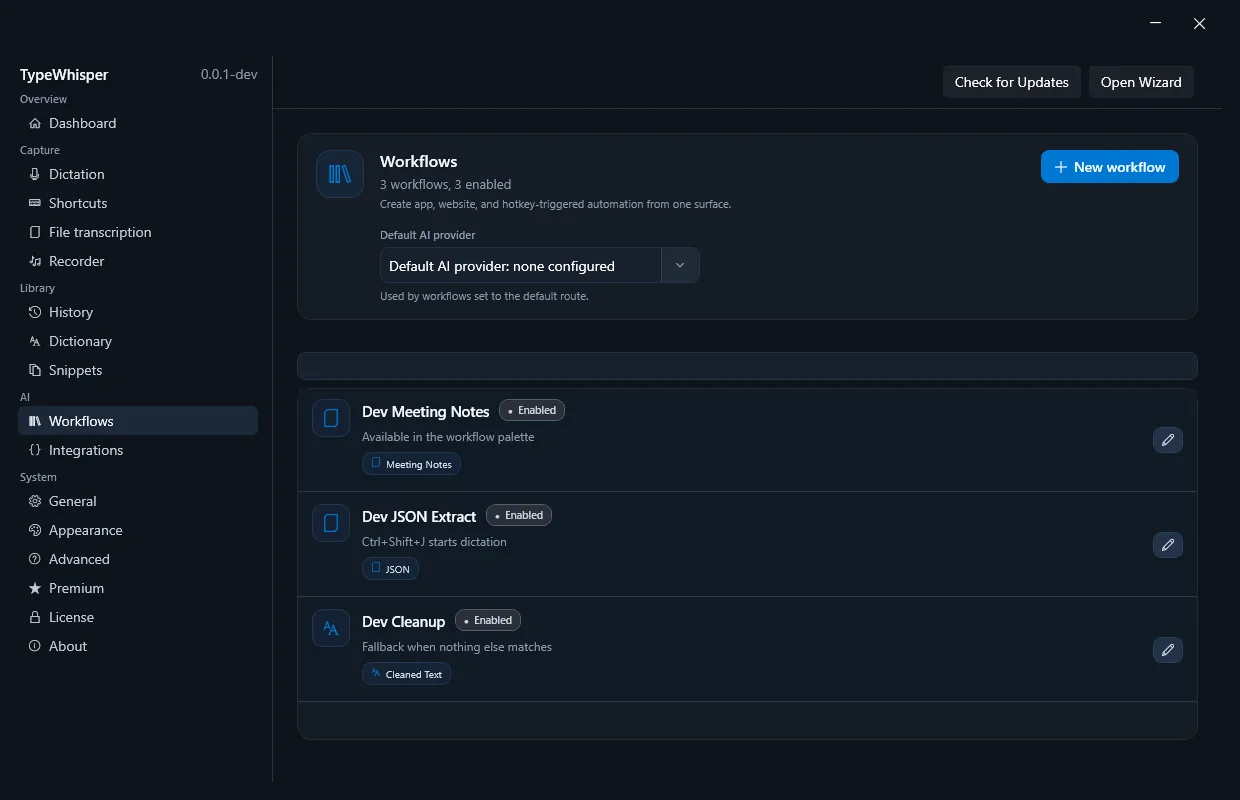
Create a workflow
Template
Choose Cleaned Text, Translation, Email Reply, Meeting Notes, Checklist, JSON, Summary, or a custom workflow.
Trigger
Choose when the workflow runs automatically, always as a fallback, or manually only.
Behavior
Optionally override the transcription model, task, ordered language hints, translation target, Whisper mode, and AI provider.
Output
Insert the text or send it to an action plugin; control the format instruction, number formatting, and optional Enter after insertion.
Triggers
| Type | Behavior |
|---|---|
| App | Matches one or more Windows process names, such as OUTLOOK.EXE or Code.exe. |
| Website | Matches domains and wildcards in supported browsers, independent of the browser process. |
| Hotkey | Starts dictation or processes selected or copied text with this exact workflow. |
| Always | Global fallback when no app or website workflow matches. |
| Manual | Appears only in the workflow palette and never runs automatically. |
An automatic workflow can combine app, website, and hotkey components. Website patterns support wildcards such as *.github.com.
Matching priority
TypeWhisper uses the first match in this order:
- Workflow explicitly forced by its own hotkey
- Combined app and website match
- Website-only match
- App-only match
- Global Always fallback
If several workflows match at the same level, their sort order decides; the name breaks a tie. Manual workflows do not participate in automatic matching.
AI post-processing and None
Templates create a suitable system instruction for the selected AI provider. Fine-tuning instructions can narrow tone, structure, or output. Select None (no post-processing) when the workflow should apply only transcription, language, model, or output options. No text is then sent to an LLM provider.
Language hints, actions, and output
- Language hints: Inherit the global list, use unrestricted auto-detection, or set an ordered list for this workflow.
- Action plugins: Send the final result to an installed action instead of the active text field. Availability and behavior depend on the add-on.
- Insertion: Without an action plugin, text is inserted normally. TypeWhisper can optionally press Enter afterward.
- Numbers: Inherit global number formatting or enable or disable it for this workflow.